
Add Team Members to Groups in Reach
Keeping your Groups up to date is key to ensuring the correct audiences are enrolled in the correct learning journeys. In this article, we'll go through adding team members to Static and Dynamic Groups both individually and in bulk. Prior to taking the steps below, you'll want to ensure your Groups are already created.
How do I know if a Group is Static or Dynamic?
From the Team page, you can see if a Group is Static or Dynamic two ways:
- If the Group card has a tool tip
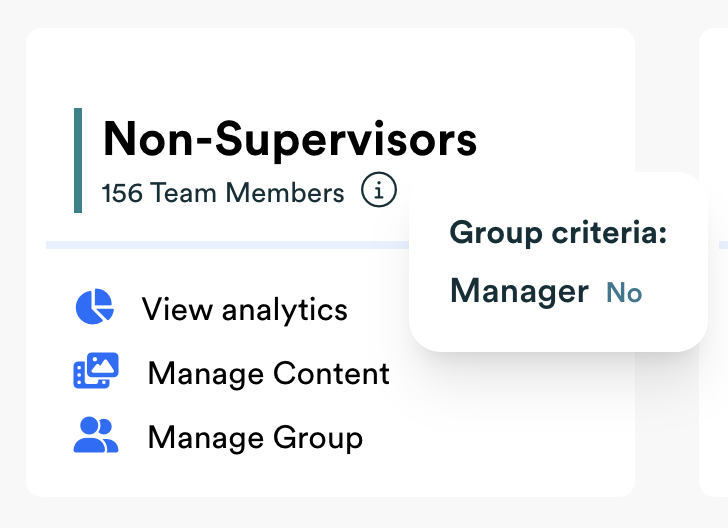
 by the name, the group is Dynamic. When you hover your mouse over the tool tip, the criteria set that determines if a team member is automatically added to that Group or not appears. If the Group card does not have a tool tip, then it is a Static Group and team members have to be manually added. Example of a Dynamic Group card:
- From the "Manage Group"
 page for each Group, look in the top right corner of the page. The group type is listed, as well as a tool tip with the criteria if the Group is a Dynamic. Example of a Dynamic Group:
 by the name, the group is Dynamic. When you hover your mouse over the tool tip, the criteria set that determines if a team member is automatically added to that Group or not appears. If the Group card does not have a tool tip, then it is a Static Group and team members have to be manually added. Example of a Dynamic Group card:
 page for each Group, look in the top right corner of the page. The group type is listed, as well as a tool tip with the criteria if the Group is a Dynamic. Example of a Dynamic Group:
Adding Team Members to Dynamic Groups
Great news! If you're utilizing Dynamic Groups, team members will automatically be added to the correct groups based on their user metadata. For example, if you have a Dynamic Group for Non-Supervisors with the criteria being Manager Status = No, then when a team member in your account has the metadata field Manager Status = No, they will automatically be added to this group. If you update their data to say Manager Status = Yes, then they will automatically be removed from this Group. If you need to update a Team Member so they'll be in the correct Dynamic Group, see this article: How to Edit Team Members.
How to Add One or Many Team Member(s) to a Static Group
To add an individual team member or multiple team members to an already existing Static Group, follow these steps:
- From the Members list, locate the team member(s) you want to add to the Group.
- Click the box next to each team member you want to add to the Group.
- Scroll to the bottom of the page and click on the Choose Action menu.
- Click "Add to Group" from the dropdown menu.
- Click the Group(s) you'd like to add all of the selected team members to.
- Confirm you'd like to add all of the selected team members to the Group(s).